Managing the K2 Nintex Automation Platform’s license is crucial to ensure uninterrupted access to its features and prevent potential downtime. In recent versions, an expired license immediately renders all K2 sites inaccessible, requiring a manual update through the Setup Manager to restore functionality.
Before K2 version 5.5, an expired license was less severe; you could still access K2 Management, which enabled administrators to update the license without service interruption. But that changed with K2 Five 5.5 and all later releases. Now, an expired license results in immediate loss of access to all K2 sites, including the Management site. To restore functionality, administrators must use the K2 Setup Manager to update the license key.
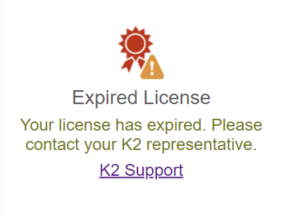
If you try to access K2 Management with an expired license, you will see an error message: “Your license has expired. Please contact your Nintex representative.” This drastic change highlights why proactive license management is critical to prevent operational disruptions.
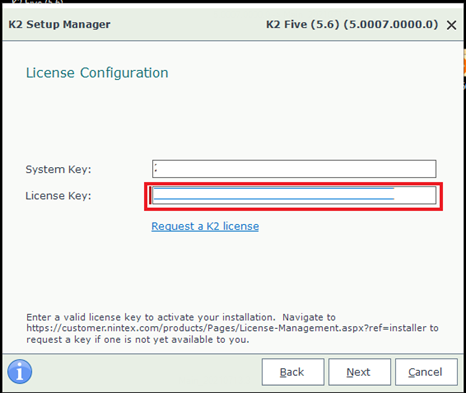
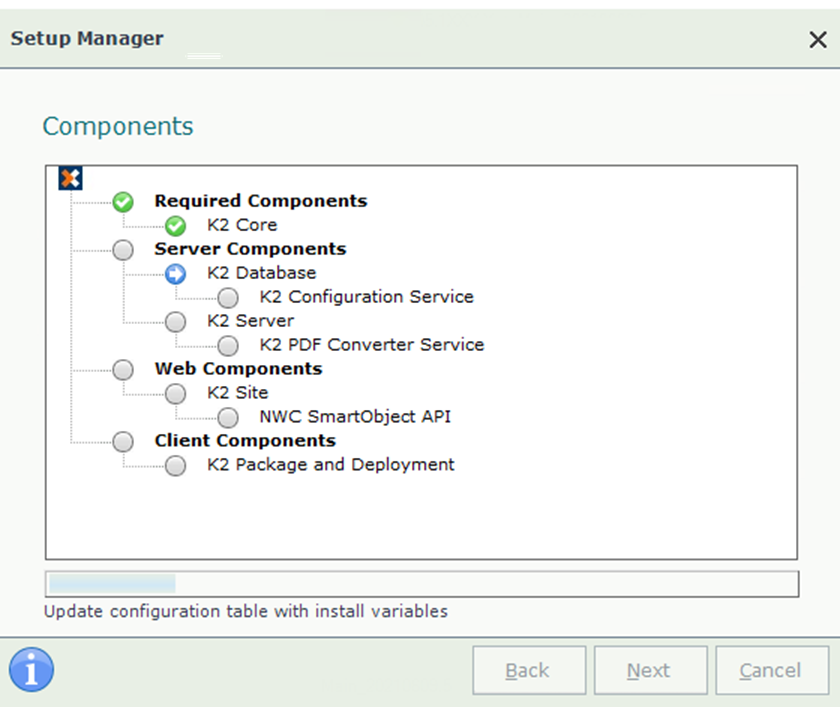
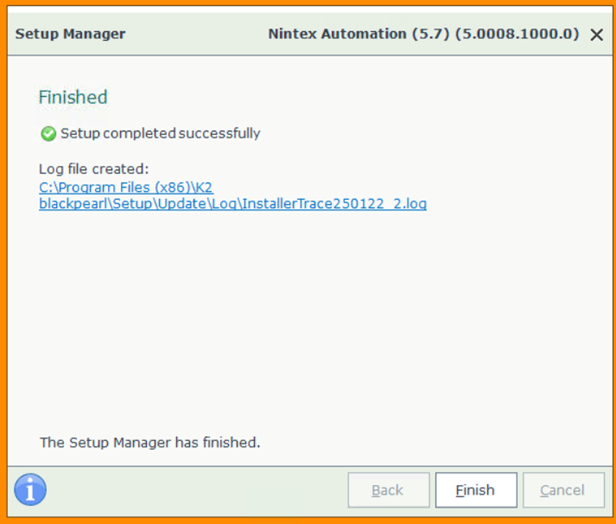
To restore access after a license expiration, you must update the license key using the K2 Setup Manager with the following steps:
To prevent unexpected downtime caused by an expired K2 license, consider implementing the following strategies:
Don’t wait until the last minute! Schedule calendar alerts well in advance of your license’s expiration date. This gives you ample time to complete the renewal process smoothly.
An up-to-date maintenance agreement is your lifeline to the latest updates and critical assistance. Staying current minimizes the risk of unforeseen problems and ensures you are always covered.
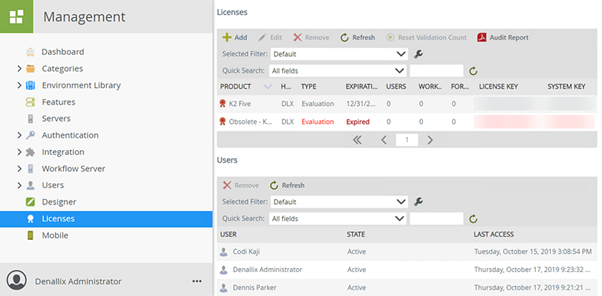
Make it a habit to check your license status periodically directly through the K2 Management site. This simple step keeps you informed about upcoming expirations, allowing you to act before any issues arise.
By taking these steps to actively manage your K2 license and stay on top of its status, you can ensure continuous, uninterrupted access to all your K2 sites and keep your operations running smoothly.
If you need any information about the Nintex K2 platform, our team will be more than happy to help. Get in touch!